
Getting Started
Connect a Linux device to Nexigon and access its web server or SSH service remotely. This guide uses the installation script and a deployment token. For a production enrollment process, use Device Provisioning, which requires Nexigon Agent 0.6 or later.
Before You Start
You need:
- A Nexigon account with permission to add devices to a project. Create a Nexigon Cloud account with your work email address if needed.
- A Linux device with root access and an HTTPS connection to your Nexigon Hub instance.
- A web server or SSH service running on the device for testing remote access.
If you build images with Rugix Bakery, follow Getting Started with Rugix. Nexigon Agent also has macOS and Windows binaries; this guide covers Linux setup.
Select an Organization and Project
An organization owns projects, devices, and repositories. A project groups devices, for example to separate testing and production fleets.
Create or select an organization. Nexigon Cloud creates a Default Project for a new organization. You can skip S3 storage configuration for this guide; it is needed when storing software artifacts.
Open Devices and select the project you want the device to join.
Create a Deployment Token
Choose Add Device, select Deployment Token, optionally enter a name, and choose Create. Copy the token immediately; Nexigon Hub does not show it again.
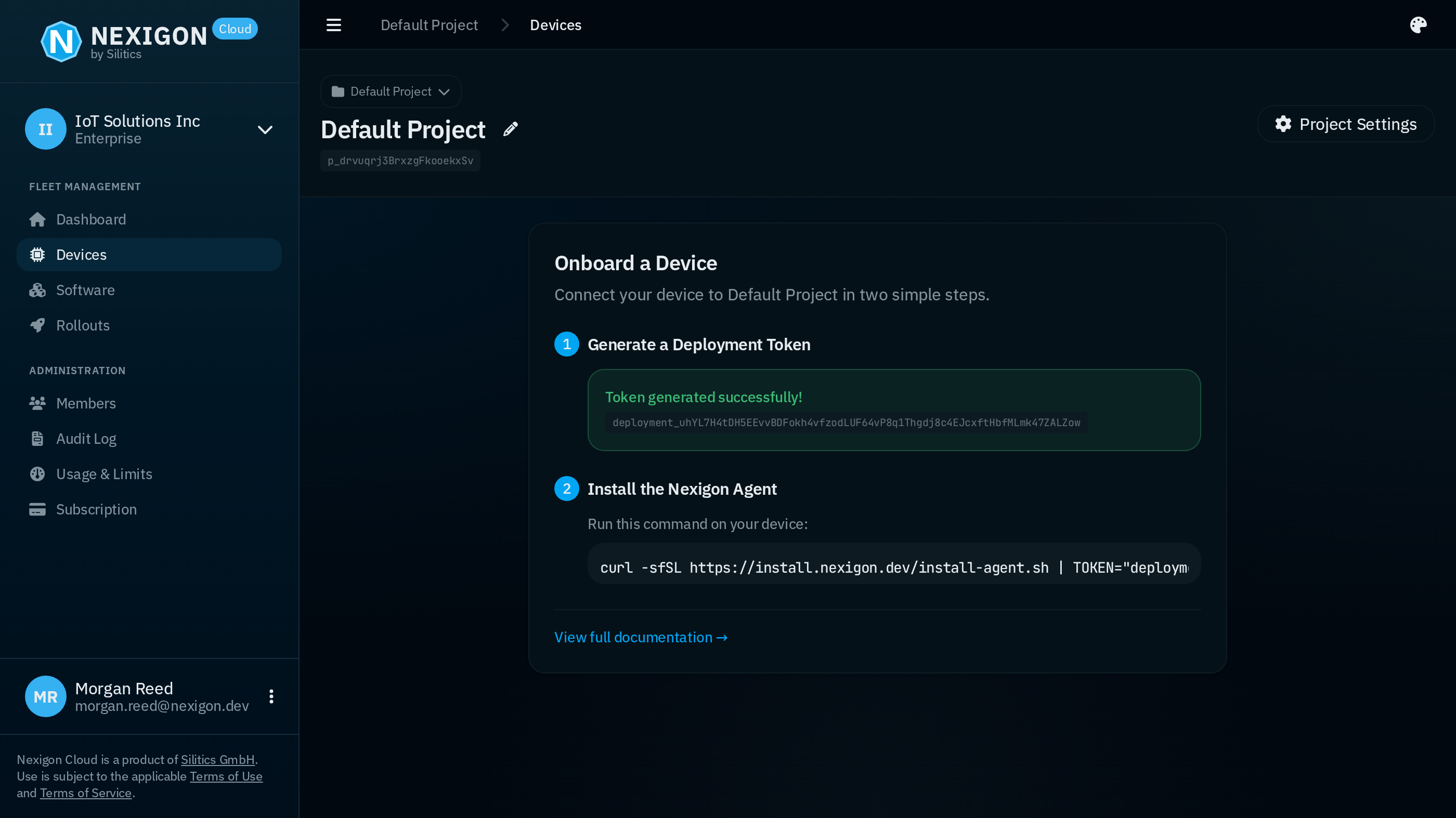
Nexigon uses three pieces of information to connect a device:
- A deployment token selects the project the device can join.
- A device certificate and private key authenticate its connection. Each device generates its own key and certificate.
- A device fingerprint identifies the device across certificate and token changes. It must be stable and unique within the project.
With Auto Accept enabled on the deployment token, Nexigon Hub accepts a new device’s first certificate automatically. Later connections must present an accepted certificate and the correct fingerprint. These acceptance checks let you use the generated self-signed certificate without operating your own certificate authority. If Auto Accept is disabled, accept the pending certificate in Nexigon before opening a remote connection.
See Device Authentication for the full identity model.
Install Nexigon Agent
Run the following as root on the device, replacing ... with your deployment
token:
curl -sfSL https://install.nexigon.dev/install-agent.sh | VERSION="v0.6.1" TOKEN="..." shThe installer uses https://eu.nexigon.cloud by default. To use another
instance, also set HUB_URL, for example:
curl -sfSL https://install.nexigon.dev/install-agent.sh | VERSION="v0.6.1" TOKEN="..." HUB_URL="https://us.nexigon.cloud" shThe script installs Nexigon Agent in /usr/bin, configures it, and starts
a systemd service. Refresh the Devices page and open the newly connected
device.
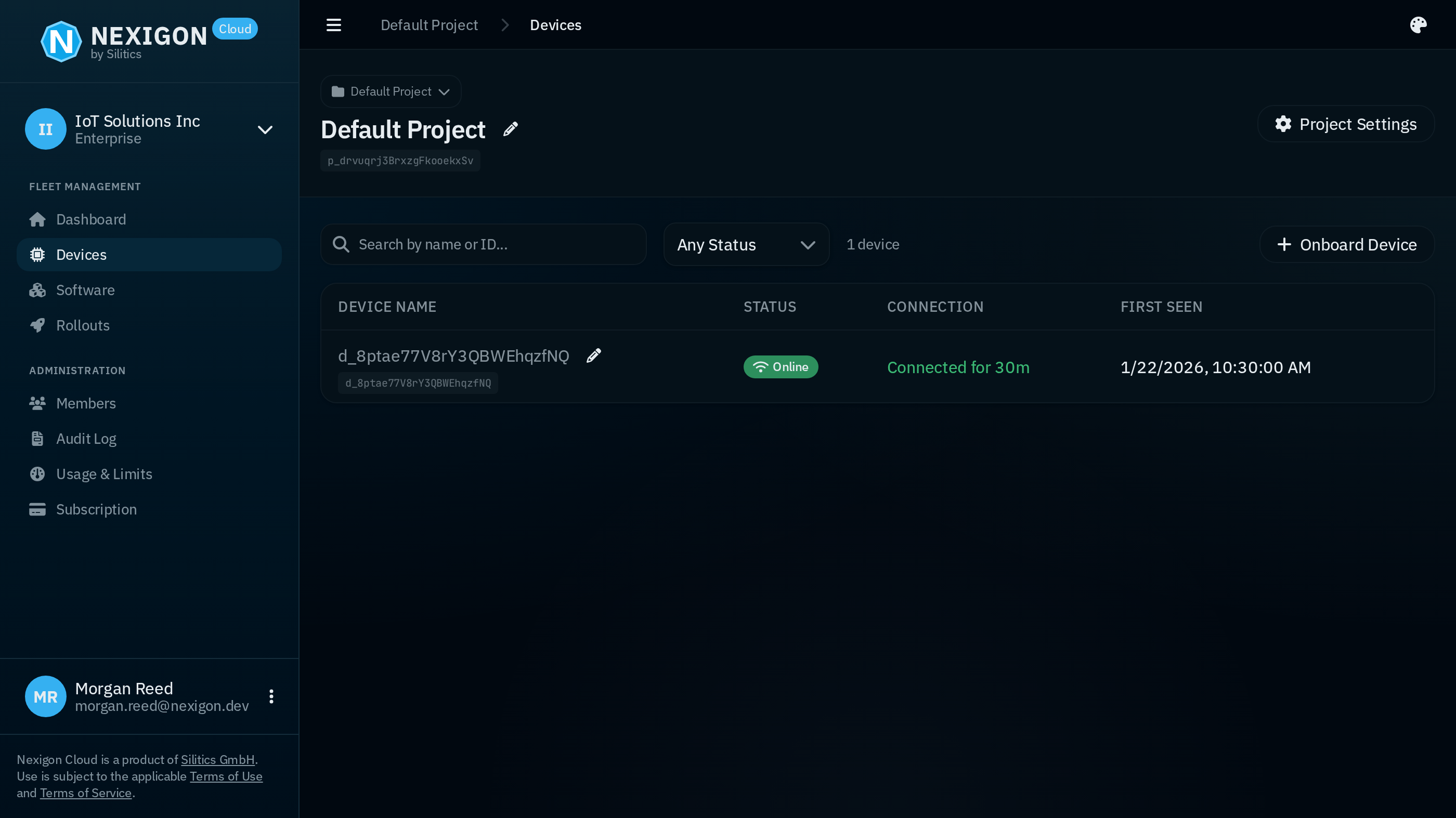
If it does not appear, inspect journalctl -u nexigon-agent. Check the
Nexigon Hub URL, deployment token, and network connection. If the token does
not enable Auto Accept, accept the device’s pending certificate before
connecting.
Permit Remote Ports
Nexigon Agent 0.6 and later requires an explicit device policy. Add this to
/etc/nexigon/agent.toml to expose a local web server on port 80 and allow SSH
on port 22, then restart Nexigon Agent:
[[exports]]
name = "Web UI"
protocol = "http"
port = 80

[forwarding]
enabled = true
allowed-tcp-ports = [22]
HTTP exports authorize raw TCP access to their ports. Generating a URL in Nexigon Hub does not authorize another port. See TCP Forwarding for the full policy.
Open the Device’s Web Server
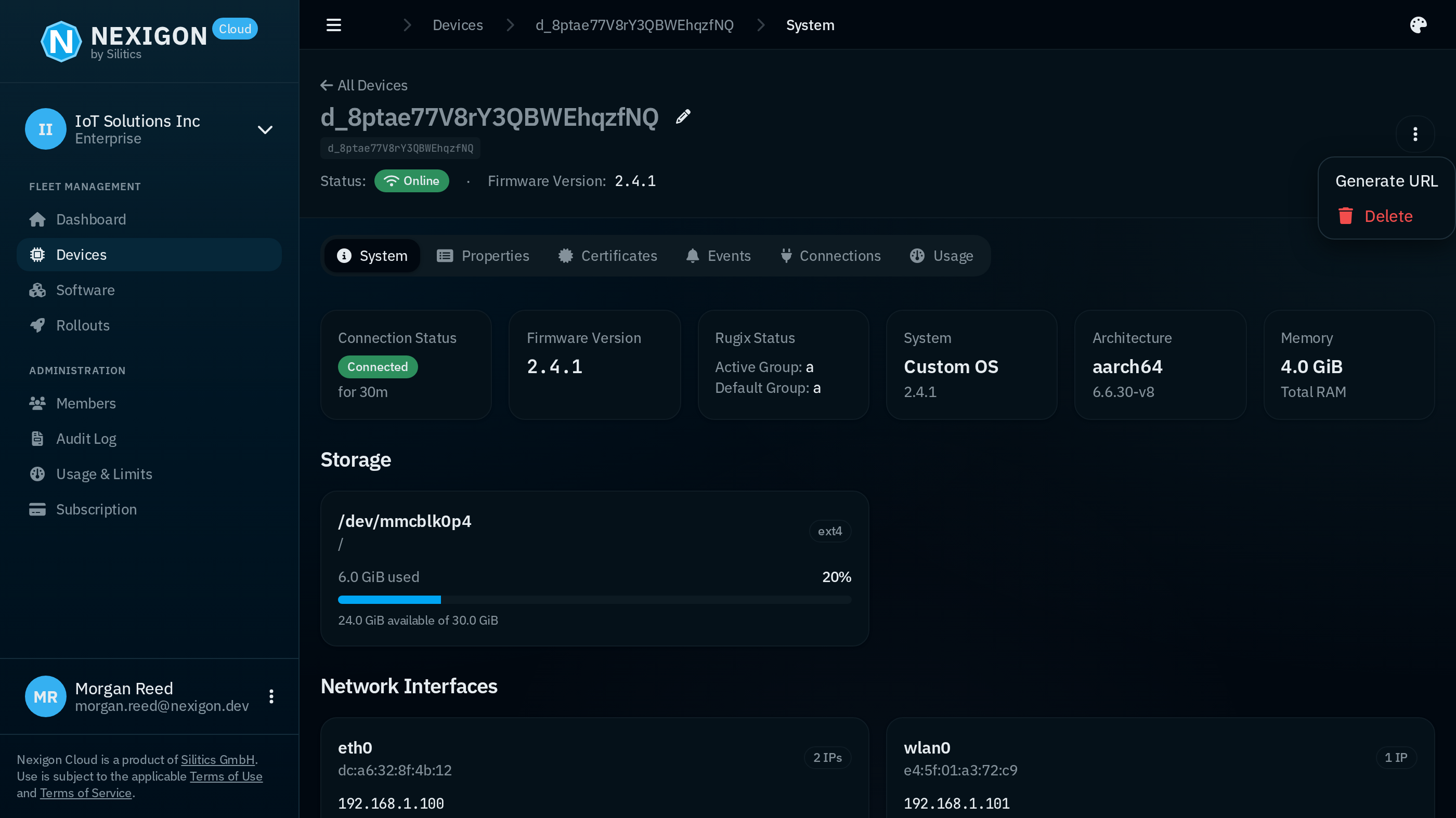
On the device page, choose Generate URL and select the HTTP service or port. Open the generated URL to access the device’s web server. The URL contains an access token for the selected service. Anyone with the link can use that access during its validity period, so treat it as a credential.
Connect over SSH
Install and configure Nexigon CLI on your workstation. It uses a user API token, which is separate from the device’s deployment token.
Copy the device ID, beginning with d_, from the device page.
From the directory containing the downloaded Nexigon CLI binary, run:
./nexigon-cli forward <device-id> 2222:22The pair 2222:22 maps port 2222 on your workstation to port 22 on the device.
Your SSH client connects to the workstation port, and Nexigon carries the
connection to the device’s SSH server. Nexigon authorizes the tunnel; the SSH
server still checks its own username and key or password.
Keep forwarding running and open another terminal:
ssh -p 2222 root@localhostUse the device’s SSH username and credentials if they differ. A successful SSH connection confirms that forwarding reaches the device’s SSH service.
Next Steps
For production images, use the firmware build integrations. To manage the connected device, continue with Device Configuration, Device Telemetry, or Deploy System Updates.